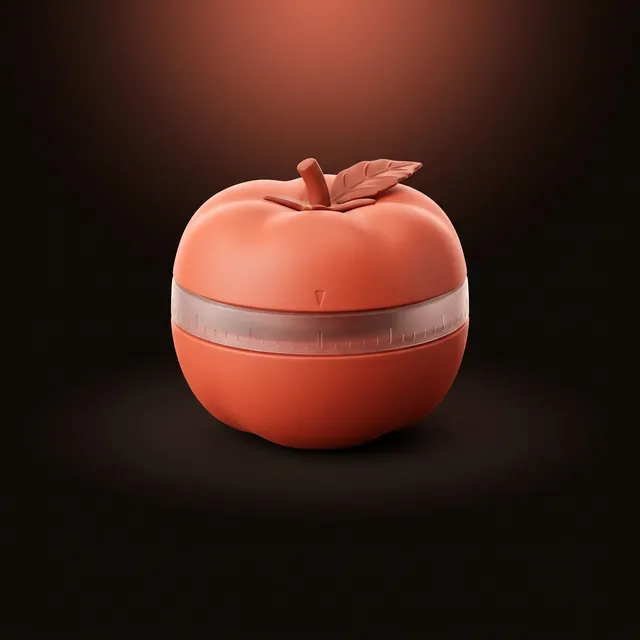
Pomodoro Timer
This free online Pomodoro timer runs the classic 25-minute focus session and 5-minute break, with a longer break every four cycles. Adjust each length, add a built-in task list that saves in your browser, and switch to a full-screen focus mode. A sound or desktop notification signals every switch between focus and rest.
Tasks
Add a task and how many pomodoros you expect it to take. Each finished focus session counts toward the first unchecked task. Saved in this browser.
How do you use this Pomodoro timer?
Press Start. The classic cycle is already set: 25 minutes of focus, a 5-minute break, and a 15-minute break after every fourth focus session.
- Optional: add what you are working on under Tasks, with how many pomodoros you expect it to take.
- Press Start. The ring fills, and the time left also shows in the browser tab, so you can see it from another tab.
- When a session ends, a short beep plays, the timer switches to the right break and waits for you to press Start again. A finished focus session counts toward your first unchecked task.
- Pause keeps the time left; Reset puts the session back to its full length.
Settings holds the three lengths (1 to 90 minutes each), the sound, a button to hear the beep before you rely on it, and desktop notifications. Your lengths, your sound choice and your tasks stay saved in this browser for your next visit, with no account.
Will the alarm ring on time if I switch tabs?
Yes, and this is where many browser timers slip. When a tab sits in the background in silence for a few minutes, Chrome stops waking ordinary JavaScript timers more than once a minute, so an alarm driven by them can arrive up to a minute late. This timer books the end-of-session beep on the browser's audio clock the moment you press Start, and that clock is not slowed down. The countdown on screen may look frozen while you are away; it catches up the instant you come back.
Two limits are worth knowing. On a phone, locking the screen or leaving the browser usually pauses the page, sound included, so keep the screen on. And desktop notifications follow the page's timers, so in a long-hidden tab the notification can trail the beep by up to a minute.
What we checked before trusting it with your focus
| Test | What happened |
|---|---|
| Pressed Start on a 25-minute session | The beep was booked on the audio clock for exactly 1,500 seconds later |
| Paused at 24:57, waited, pressed Start again | It carried on from 24:57 |
| Ran a 1-minute session with a task estimated at 2 | Beep at 1:00, switch to Short break, task moved to 1 of 2 |
| Reloaded the page | The custom length and the task were still there |
Is 25/5 the best split, or is 50/10 better?
Neither is best for everyone. The 25 minutes come from Francesco Cirillo's original method, and the usual alternatives keep a similar share of the hour for focus. What changes is how long you stay on one thing before stopping:
| Split | Focus share | Fits |
|---|---|---|
| 25 / 5 | 83% | the classic; tasks that tempt you to switch, or getting started on something you are avoiding |
| 25 / 5, with 15 after every fourth | 77% (100 minutes of focus in 130) | a long work block, the full method |
| 50 / 10 | 83% | writing, coding or study that needs time to get into |
| 90 / 20 | 82% | rare deep sessions; harder to sustain several times a day |
Change the lengths in Settings. The Pomodoro Technique guide explains the method itself and why the breaks matter.
What can't it do?
- Start the next session by itself. It switches to the break and waits, so you choose when the clock runs again.
- Run while your phone is locked. Browsers pause pages in the background on mobile.
- Sync tasks between devices. They live in this browser only, with no account and no server copy.
- Track your history. It counts the focus sessions of this visit, not past days.
Frequently asked questions
What is the Pomodoro Technique?
A time-management method created by Francesco Cirillo in the late 1980s, named after the tomato-shaped kitchen timer he used as a student. You work in focused intervals, traditionally 25 minutes, then take a short break. After four intervals, you take a longer break before starting the cycle again.
Why is a Pomodoro session 25 minutes?
Twenty-five minutes is long enough to make real progress on a task but short enough to sustain full concentration without fatigue. It also creates urgency, since a visible countdown discourages checking your phone. The interval is a convention, not a law, so this timer lets you adjust it freely.
Does this timer notify me when time is up?
Yes, in two ways. A short beep plays by default when a session ends, and you can also turn on desktop notifications in Settings. Settings has a button to hear the beep first, so you know your volume is up before a session ends. You can switch either alert off at any time.
Can I change the length of the focus and break sessions?
Yes. Open Settings: focus, short break and long break each take 1 to 90 minutes, and your lengths are remembered in this browser for next time. A common alternative is 50/10 for deep work. A change made while a session runs applies the next time it starts, so the clock is not interrupted.
How many Pomodoros should I do in a day?
There is no fixed number. On paper, an eight-hour day holds about 15 focus sessions in the classic cycle, long breaks included, but few people keep full concentration that long. Many start with four, one full cycle, and add more as the rhythm settles. The tool counts the sessions you finish in each visit.
Does the timer keep running if I switch tabs?
Yes. The end of the session is booked on the browser audio clock when you press Start, so the beep rings on time even in a background tab, where Chrome can slow ordinary timers to once a minute. The countdown on screen catches up the moment you return. On a phone, keep the screen on.
Can I track tasks with this Pomodoro timer?
Yes. A built-in task list lets you add what you are working on and estimate how many pomodoros each task needs. When a focus session ends, the timer credits it to your first unfinished task, so you can watch progress build up and check tasks off as you complete them.
Does it save my tasks between visits?
Yes. Your tasks, session lengths and sound choice are saved in your browser, so they are still there when you come back, with no account or signup. They stay on your device and are never uploaded to a server. Clearing your browser data or deleting a task removes it for good.
Can I use it in full screen without distractions?
Yes. Full screen shows just the timer, the Start and Reset buttons and your current task, filling the window so nothing else competes for your attention. It suits a deep focus block. Press Exit in the corner, or the Esc key, to go back to your tasks and settings.
Can I see the time left from another tab?
Yes. While a session runs, the browser tab shows the time left and the session type, such as 18:42 Focus, so you can glance at it while you work in another tab. When you pause or a session ends, the tab goes back to its normal title.
Related tools

Rate Pomodoro Timer & help shape it
This tool is free and still growing. Tell us what works, what you would change, and what is missing. Your feedback is what decides what we build next.
Built and tested by the ÆON Toolhub team. Last updated: October 19, 2026. How we test our tools